***
## Template details
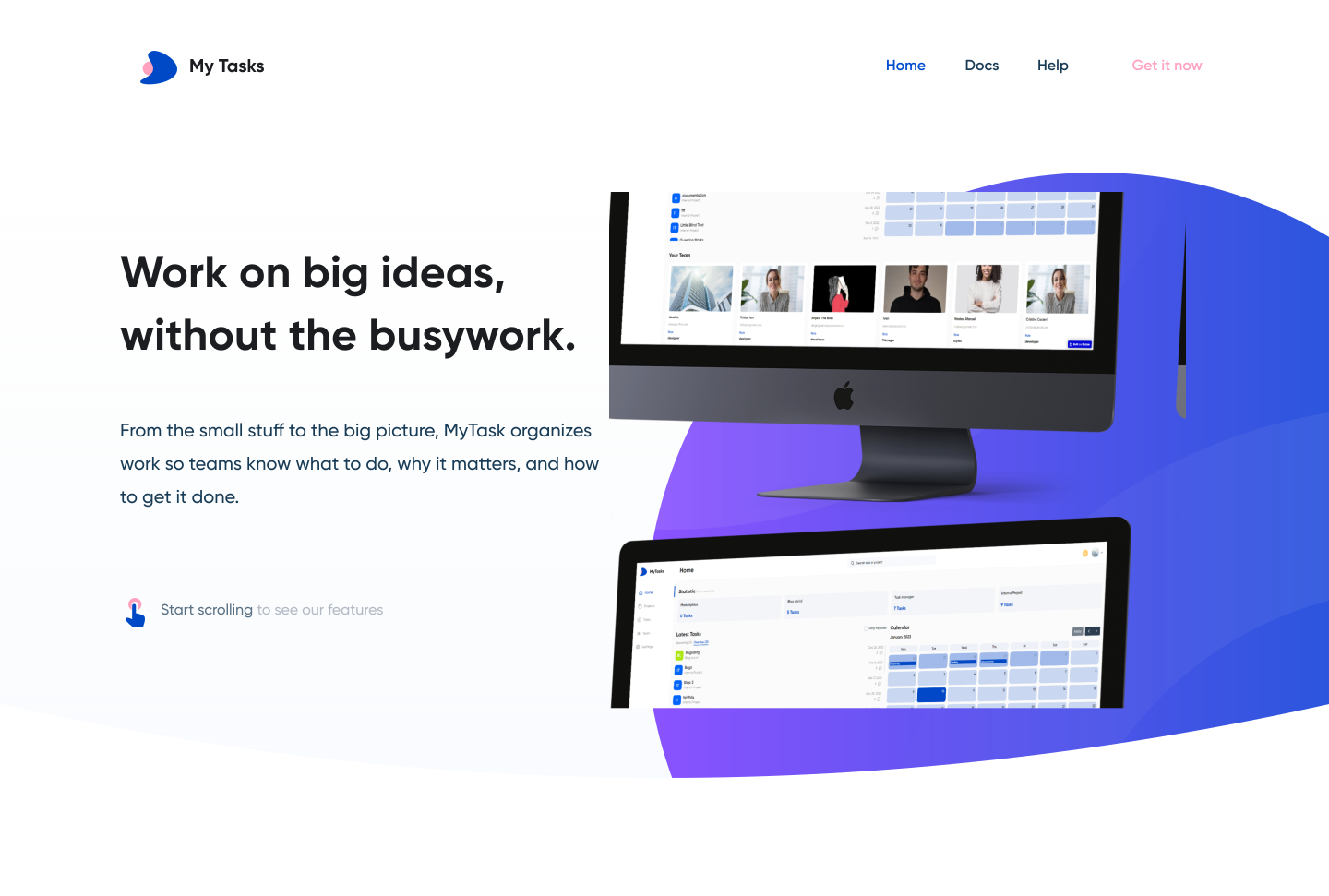
"Task Manager" is a powerful task management tool that offers users a wide range of features. With it, you can easily create, assign, and track tasks, manage teams, and allocate resources to optimize workflow processes. The unique feature of this application lies in its intuitive interface and flexible customization, allowing you to adapt it to the specific needs of your team or business.
Task Manager template features the following:
✅ Updated design, fully adaptable to Bubble's latest mobile responsive design requirements.
✅ Instant access to the main page for demo users to fully explore the application.
✅ Ability to view all workspaces regardless of project availability.
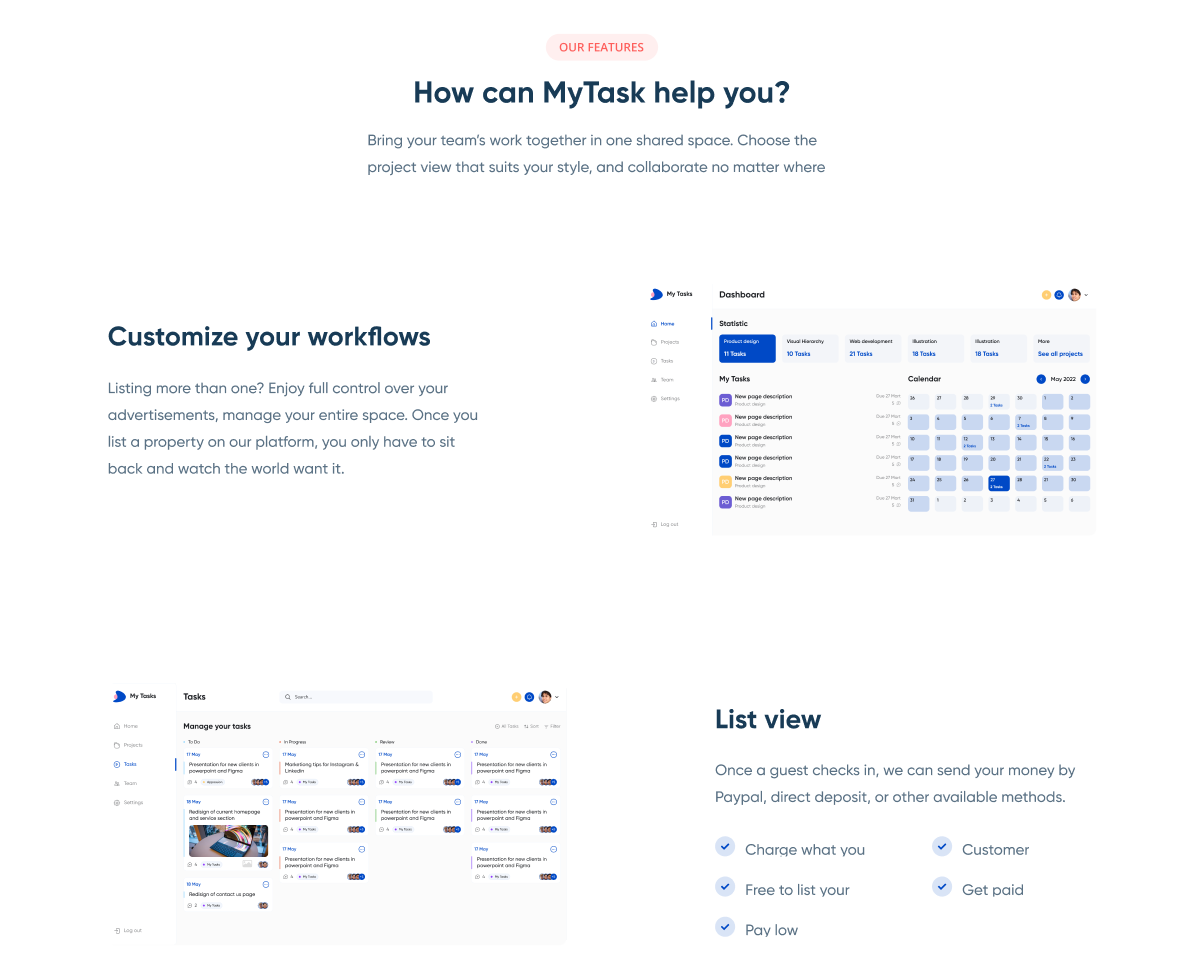
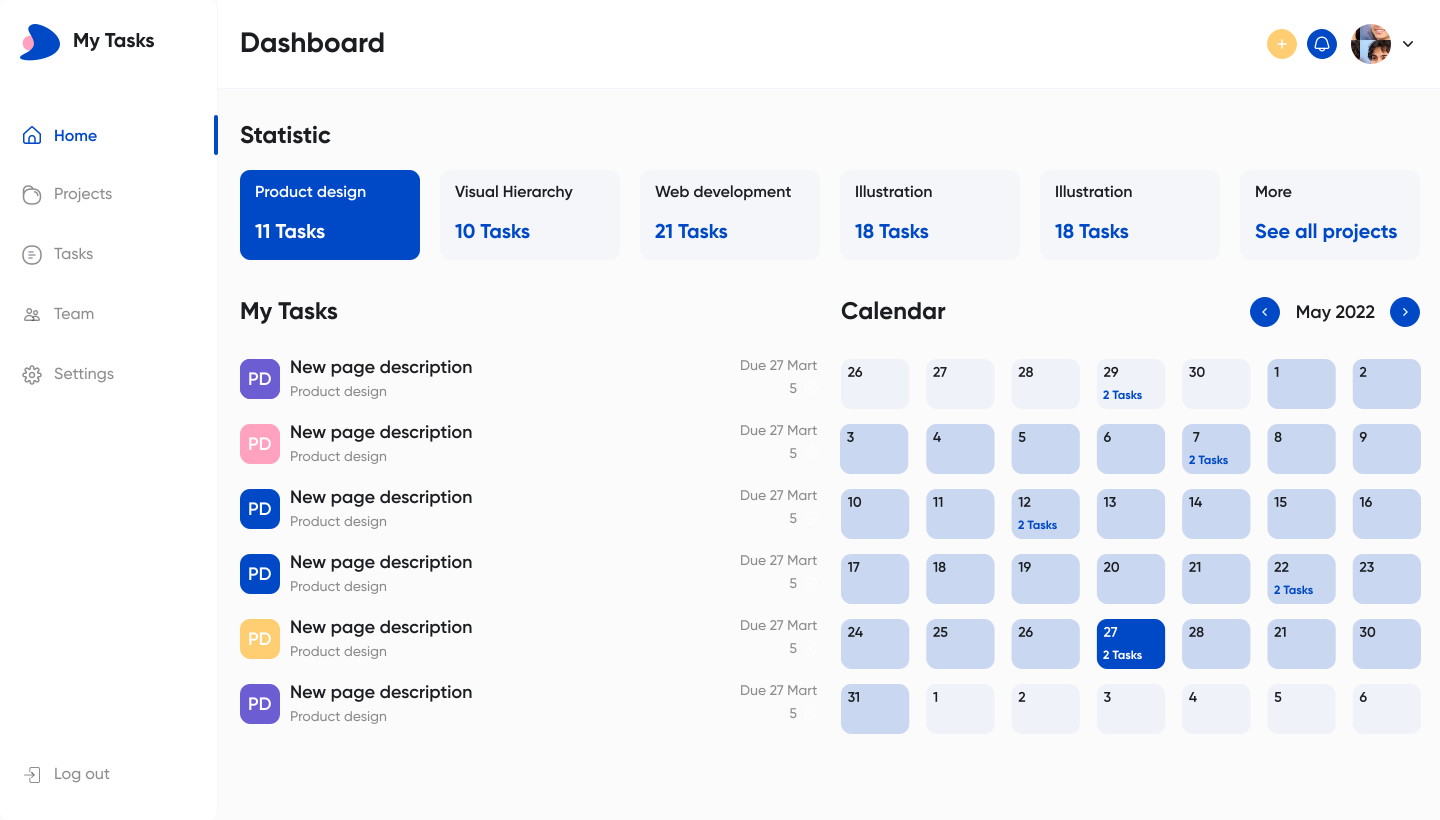
✅ Monitoring panel providing an overview of the latest assigned tasks and updates on projects.
✅ Calendar plugin with updated design and task management capabilities.
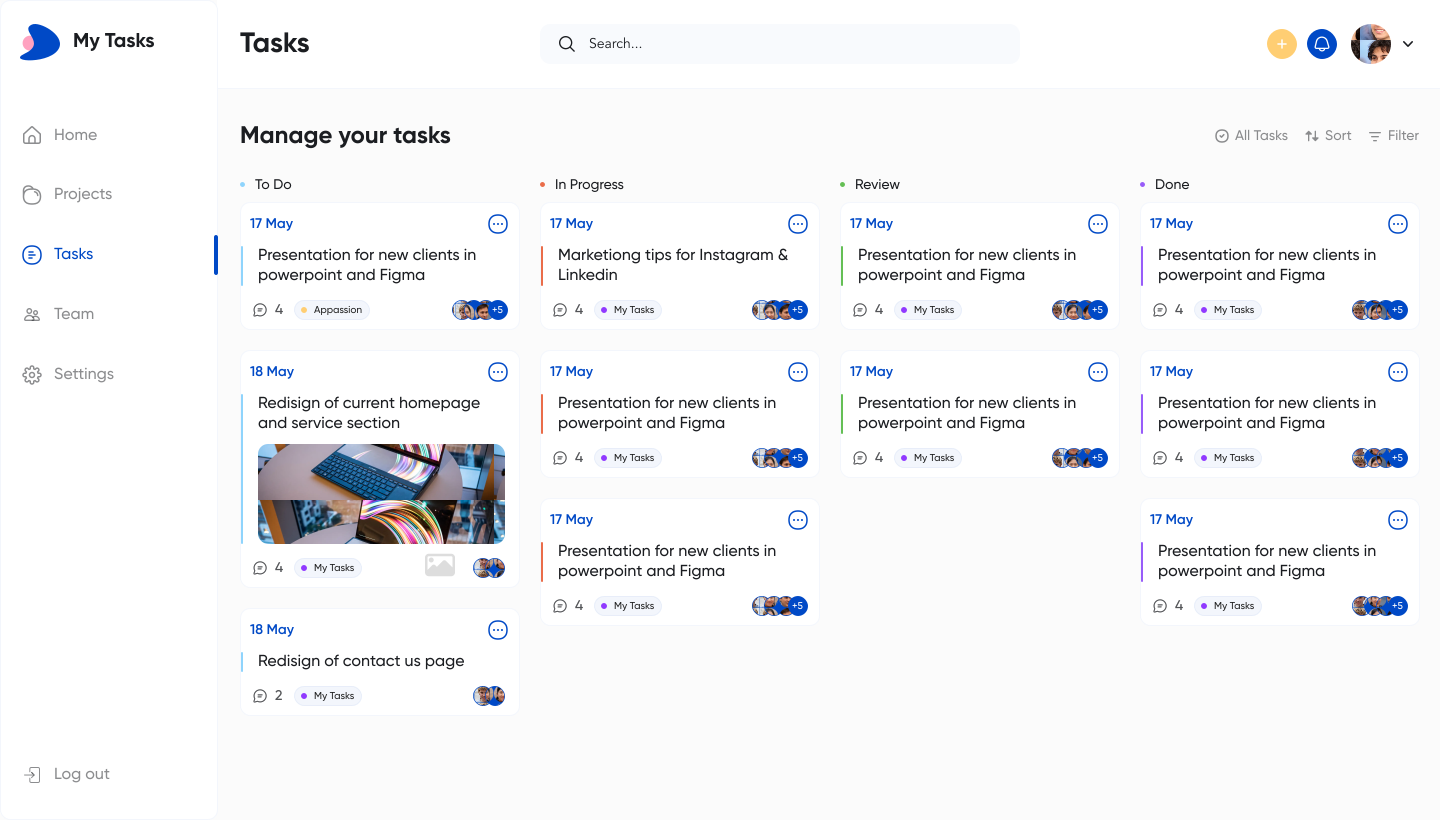
✅ Drag-and-drop project cards to change their status.
✅ List of tasks created or assigned to the current user.
✅ Ability to invite colleagues via email.
✅ "Settings" section with functions to update personal information, change email and password, as well as the ability to log out from other sessions on different devices for data security enhancement.
✅ Access to tasks from various sections of the application, including the calendar and projects.
We tried to keep all the workflows and design architecture simple for beginner-intermediate users to use and adjust. However, we recommend having at least moderate experience with Bubble to be able to fully use and edit the app’s backend.\
\
If you need any assistance to customize this template for your personal or business project, feel free to reach out to our team via . We are always there to help build new products and mobile/web applications.
{% hint style="warning" %}
***Removing the banner***
***1. Open the app in Bubble editor***
***2. Go to settings -> SEO/Metatags***
***3. Remove the content of "Script in the body"***
{% endhint %}
***
## User flows
**Main flow:**
-> Registering a new user -> Navigating to the Workspaces page-> Creating a Workspace -> Creating a project -> Setting up personal information -> Navigating to the Dashboard page -> Inviting people to the team -> Creating a new task -> Viewing and tracking tasks
***
## Key Features
TASK CREATION AND MANAGEMENT
true
TEAM MANAGEMENT
false
MONITORING PANEL
true
CALENDAR PLUGIN
true
PROJECT CARD DRAG-AND-DROP
true
SETTINGS MANAGEMENT
false
## Task Manager Overview | Review and starter tips
Based on your commonly asked questions, we've prepared a list of basic tips for those who are just starting on Bubble and want to find their way around the project for their dream project.
Feel free to leave a comment or reach out to us via if you have any questions.
{% embed url="" %}
## Workflows
### Primary colors and their purposes
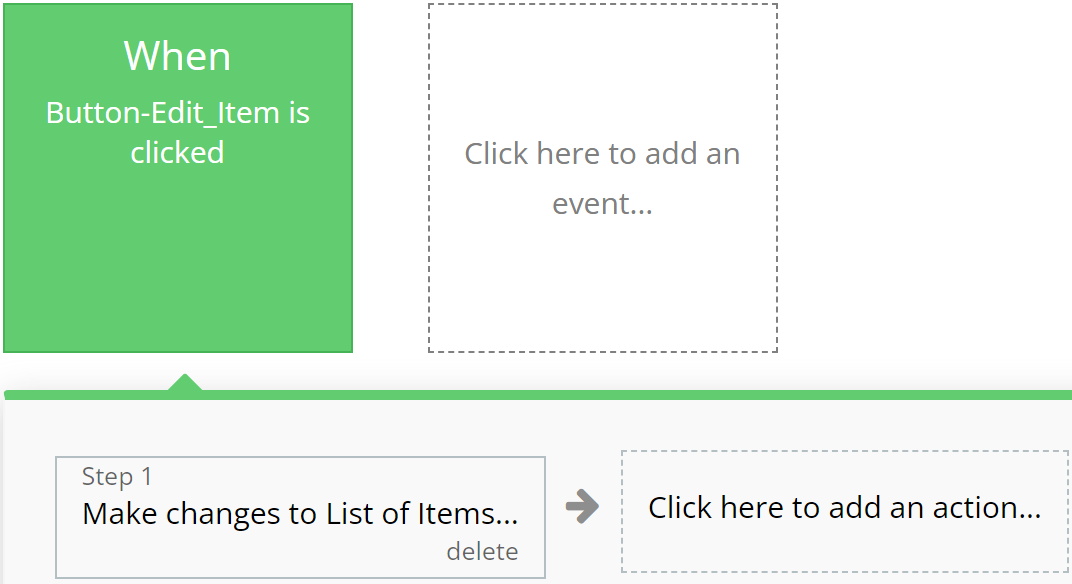
### **Green**
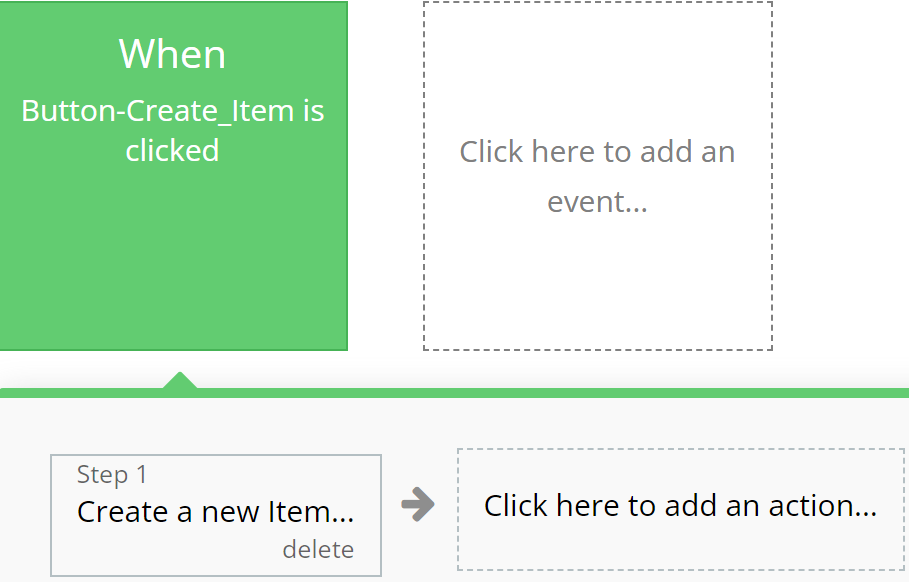
Emphasizes actions related to creating or modifying records in the database, indicating successful operation completion.
**For example:**
{% tabs %}
{% tab title="Example 1" %}
{% endtab %}
{% tab title="Example 2" %}
{% endtab %}
{% endtabs %}
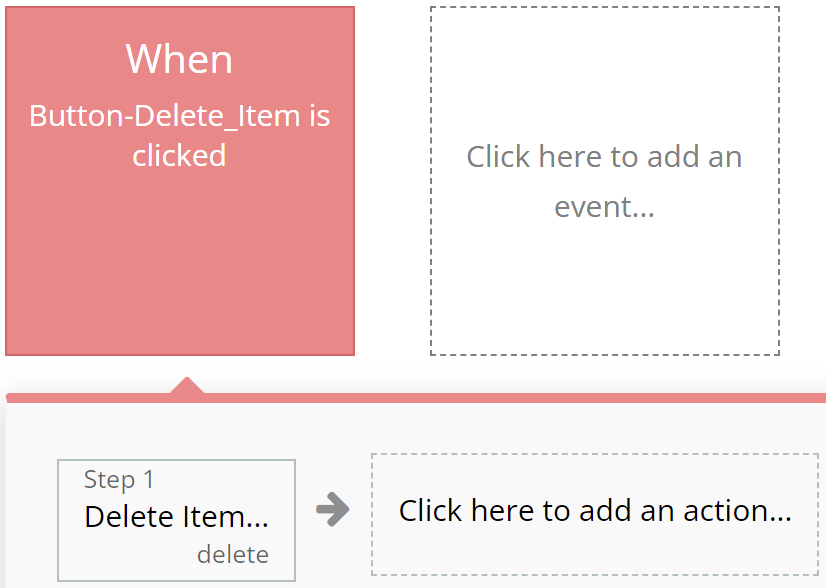
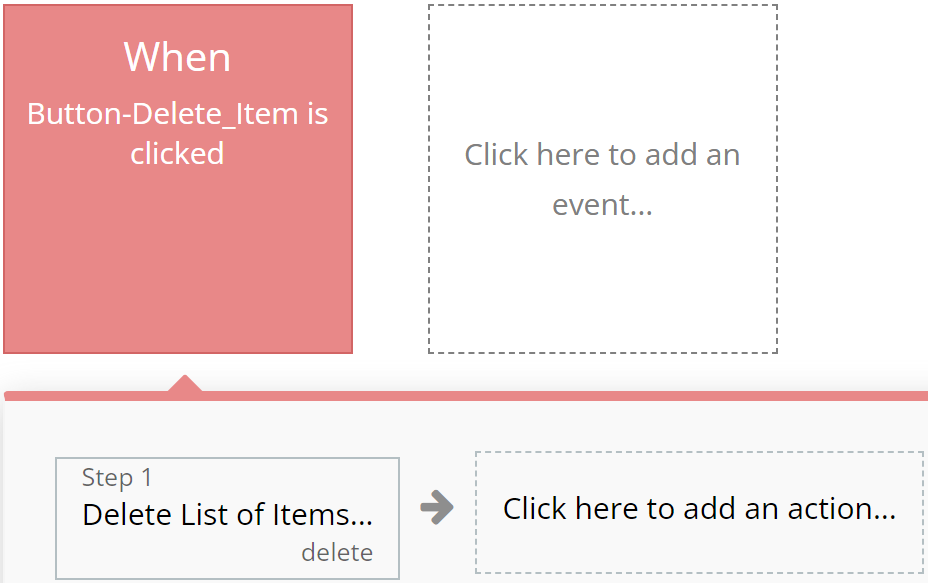
### **Red**
Designated for actions involving deletion or resetting of values, aiding users in quickly identifying them.
**For example:**
{% tabs %}
{% tab title="Example 1" %}
{% endtab %}
{% tab title="Example 2" %}
{% endtab %}
{% endtabs %}
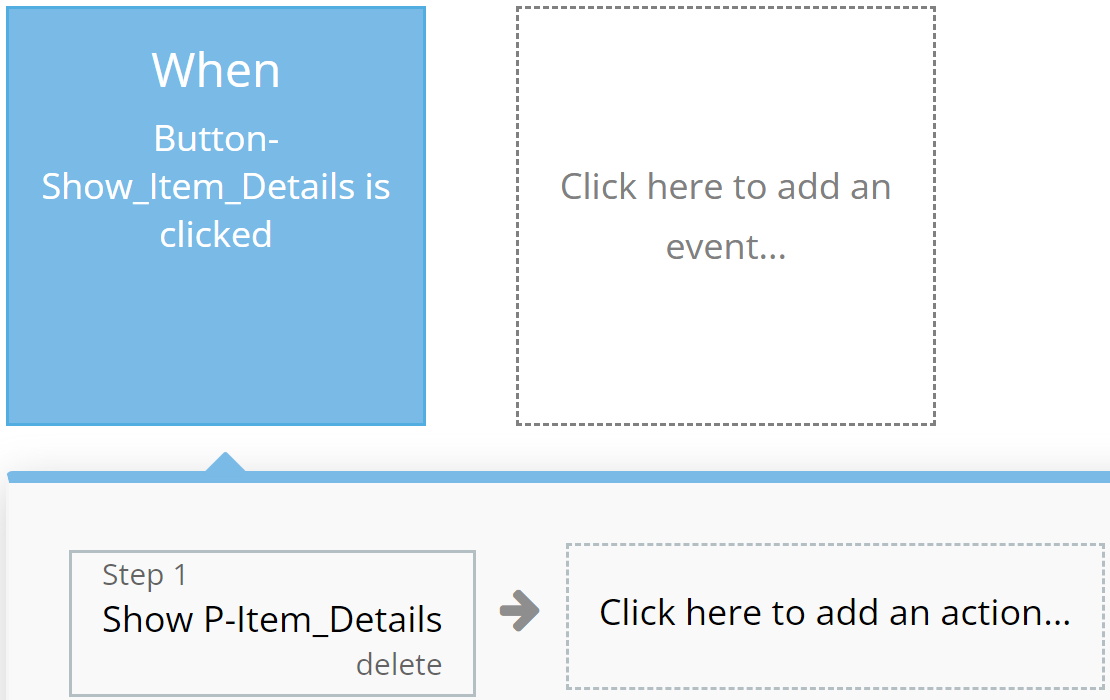
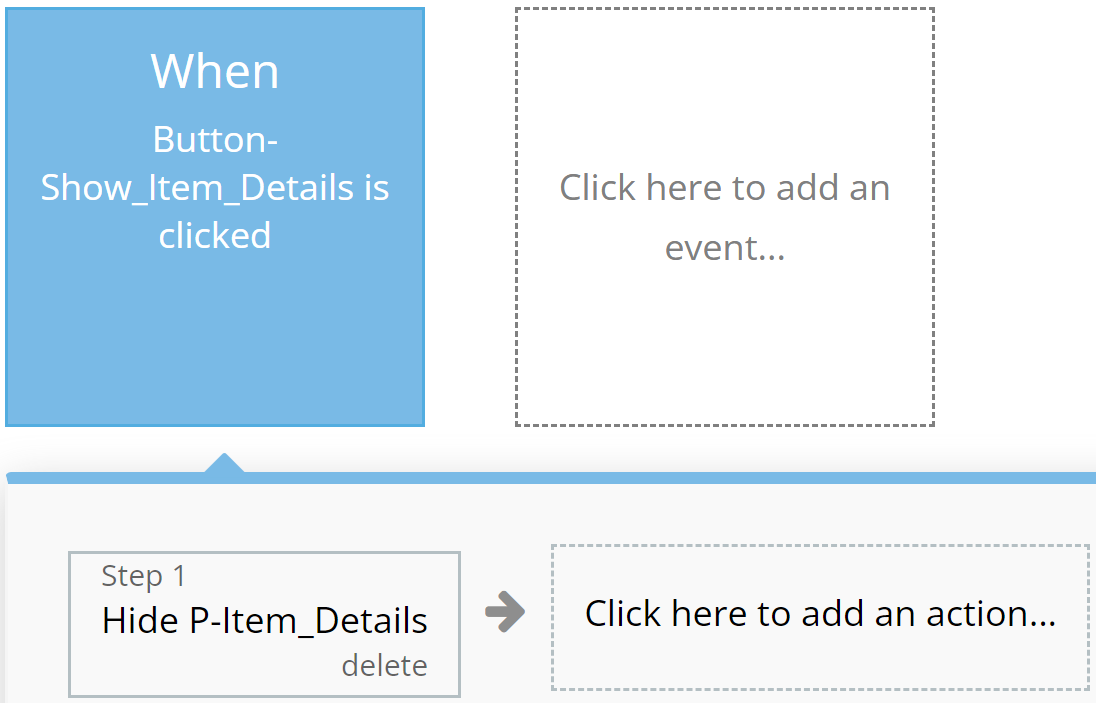
### **Blue**
Reserved for actions that do not impact application resources, such as opening or closing pop-up windows.
**For example:**
{% tabs %}
{% tab title="Example 1" %}
{% endtab %}
{% tab title="Example 2" %}
{% endtab %}
{% endtabs %}
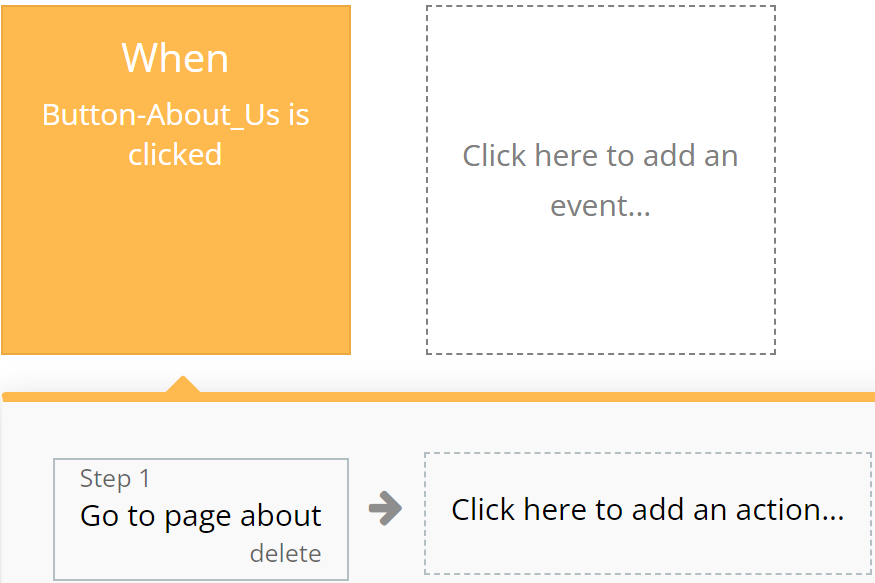
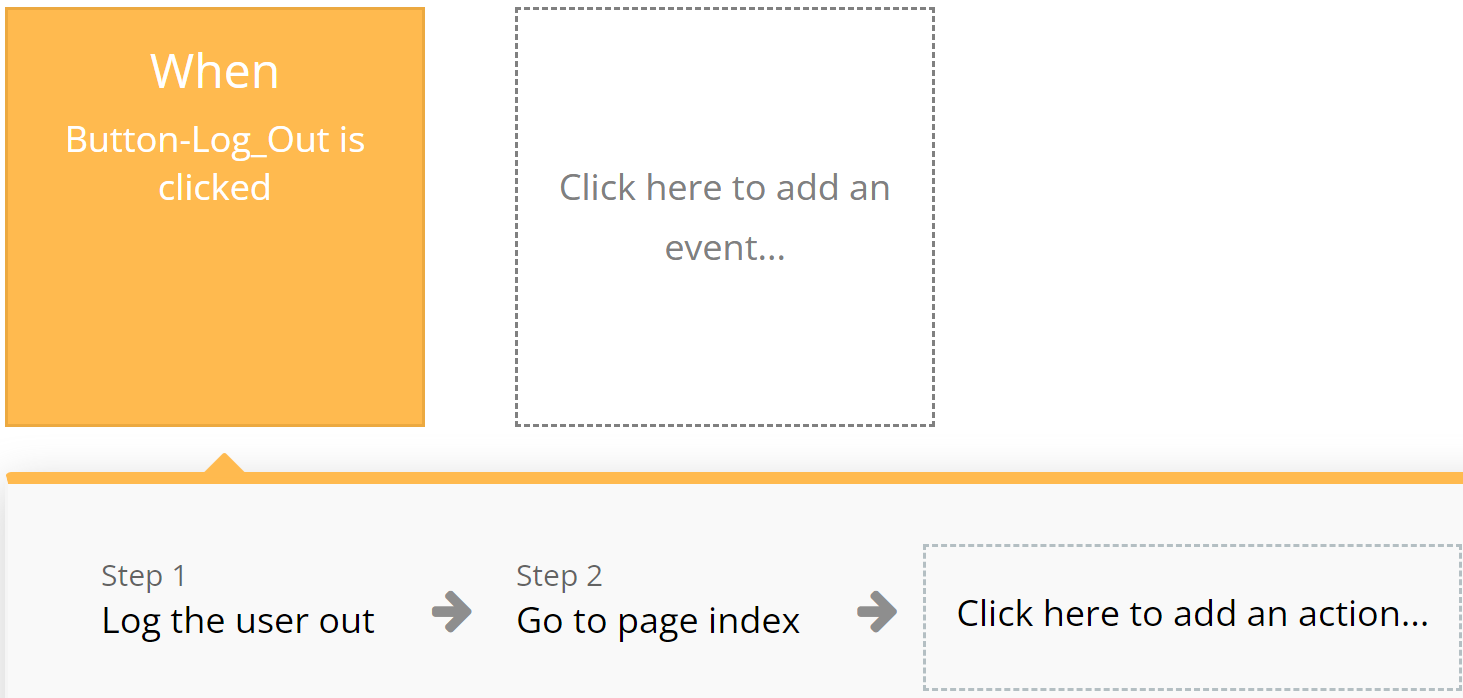
### **Orange**
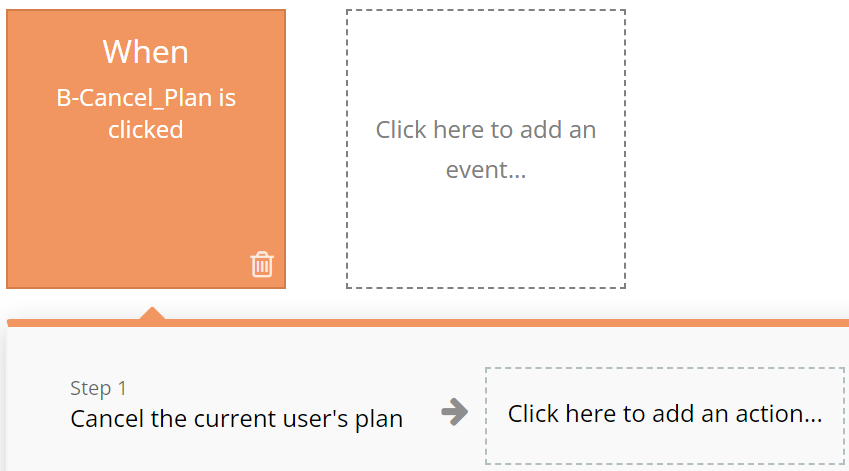
Used for actions related to app navigation, providing ease of orientation within the interface.
**For example:**
{% tabs %}
{% tab title="Example 1" %}
{% endtab %}
{% tab title="Example 2" %}
{% endtab %}
{% endtabs %}
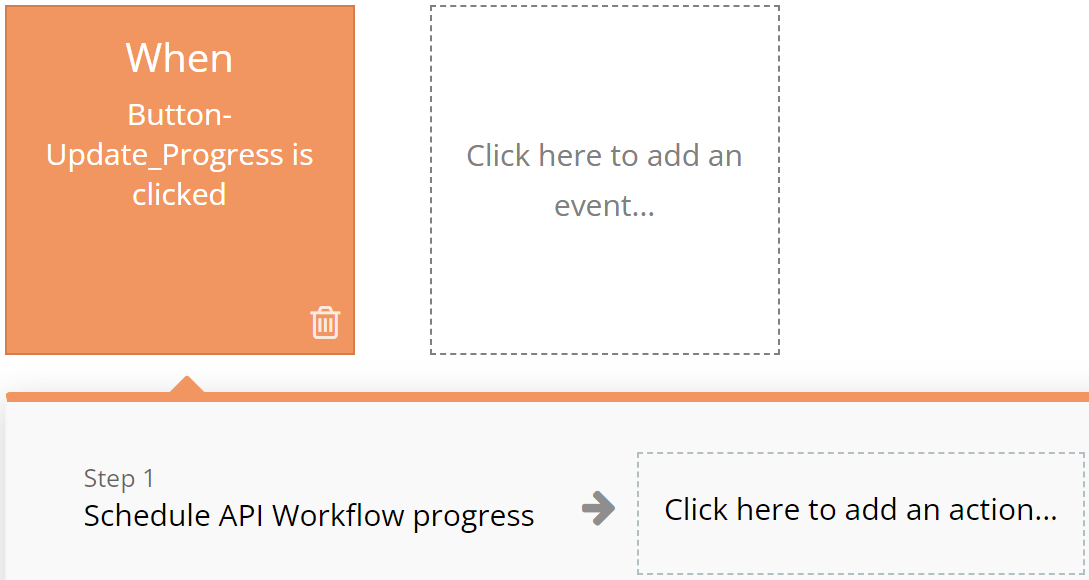
### **Brown**
Utilized for custom workflows and API work, highlighting these actions among others.
**For example:**
{% tabs %}
{% tab title="Example 1" %}
{% endtab %}
{% tab title="Example 2" %}
{% endtab %}
{% endtabs %}
### **Purple**
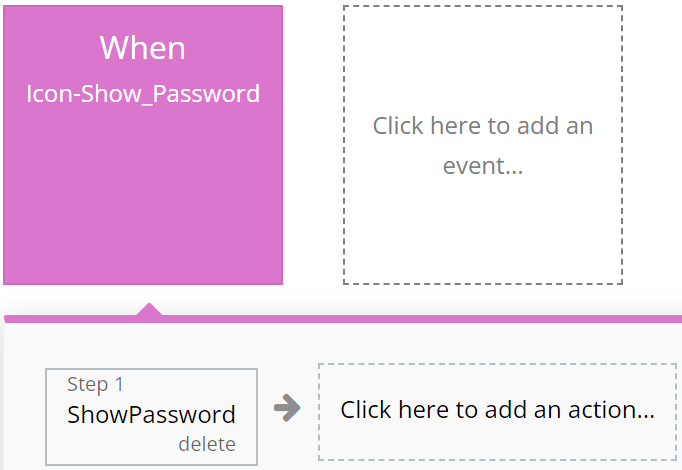
Left to the developer's discretion for assigning color to actions as they see fit.
**For example:**
{% tabs %}
{% tab title="Example 1" %}
{% endtab %}
{% tab title="Example 2" %}
{% endtab %}
{% endtabs %}
### **Cyan**
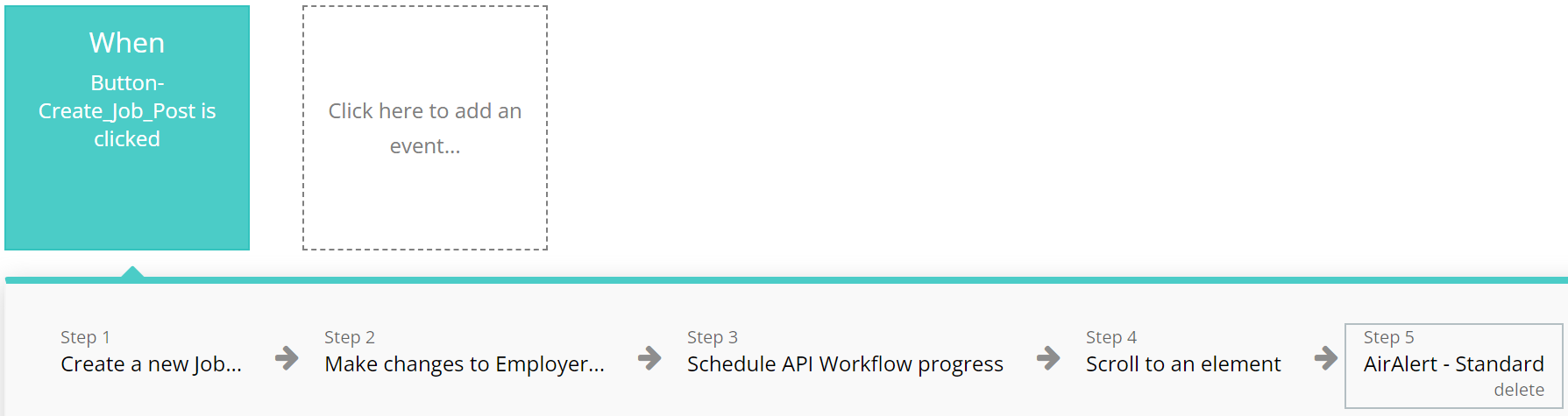
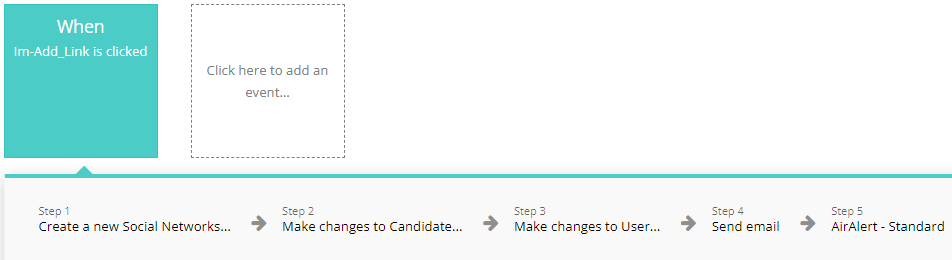
**I**ntended for actions involving the use of Custom Events, ensuring ease of perception for complex operations.
**For example:**
{% tabs %}
{% tab title="Example 1" %}
{% endtab %}
{% tab title="Example 2" %}
{% endtab %}
{% endtabs %}
### **Grey**
Employed for all other actions not covered by other colors, aiding in making the interface clear and balanced.
**For example:**
{% tabs %}
{% tab title="Example 1" %}
{% endtab %}
{% endtabs %}
{% hint style="warning" %}
These standards are purely recommendations. Possible discrepancies do not affect the functionality of the application.
{% endhint %}
***
## Pages (element tree should be added here in some way)
*Below, you will find a list of all the pages available on this platform, along with a brief description of their functionality.*
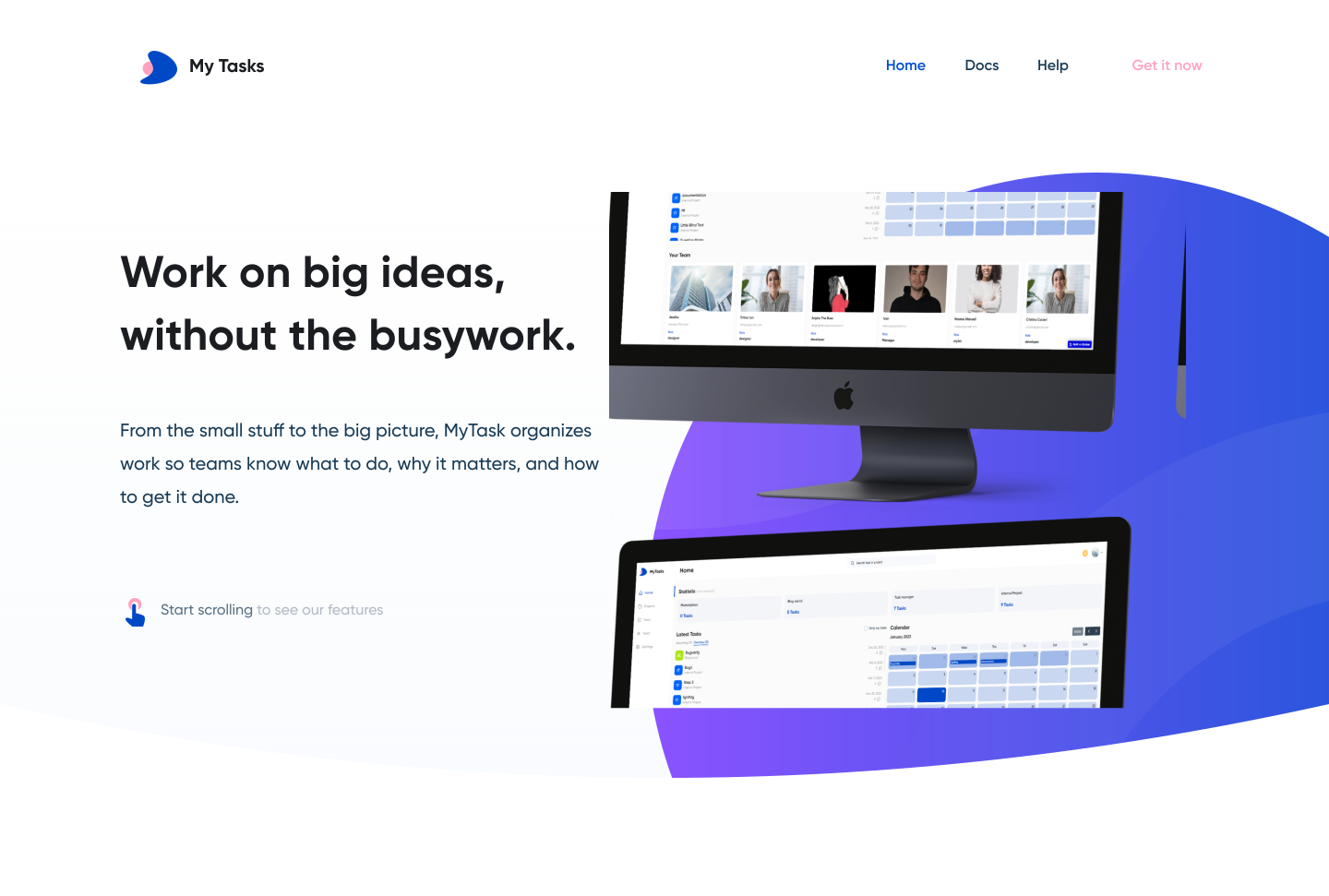
\ **Index:** Visit our landing page to get an overview of the project, where you'll find descriptions of features and answers to key questions. Here, you'll find an overview of the "My Task" application, including its purpose, key features, and capabilities.
**Login:** This is the page where you can register or log in.
**Docs:** Access all necessary platform documentation, including Privacy Policy, Terms & Conditions, and Frequently Asked Questions (FAQ).
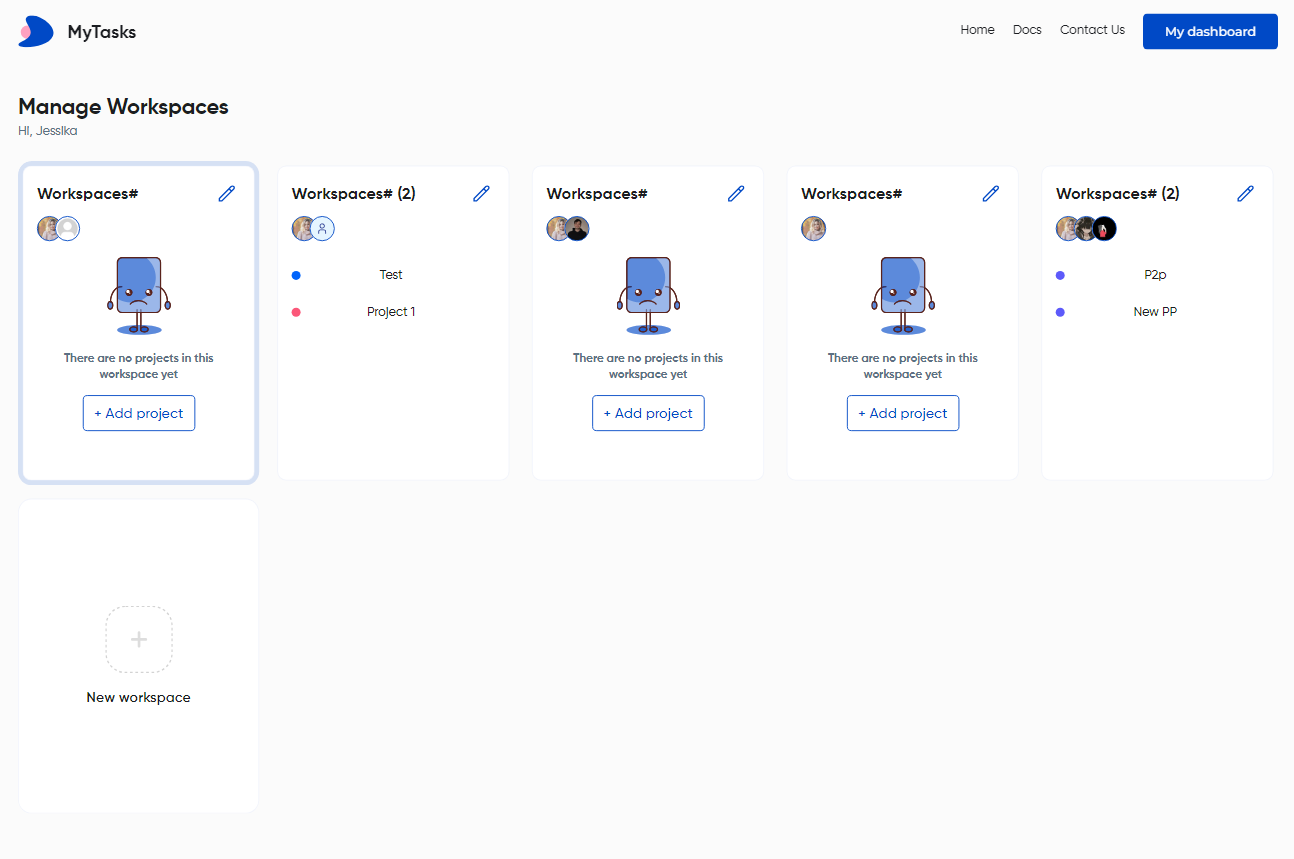
**Workspaces:** Create, browse, and edit your Workspaces to start managing projects and tasks efficiently today!
**Reset Password:** Effortlessly reset your password and receive updated login credentials for seamless access.
**Dashboard:** A dashboard providing essential and up-to-date information.
* The "Home" is the main tab on the dashboard page, featuring a calendar and the option to create tasks, as well as a list of my team.
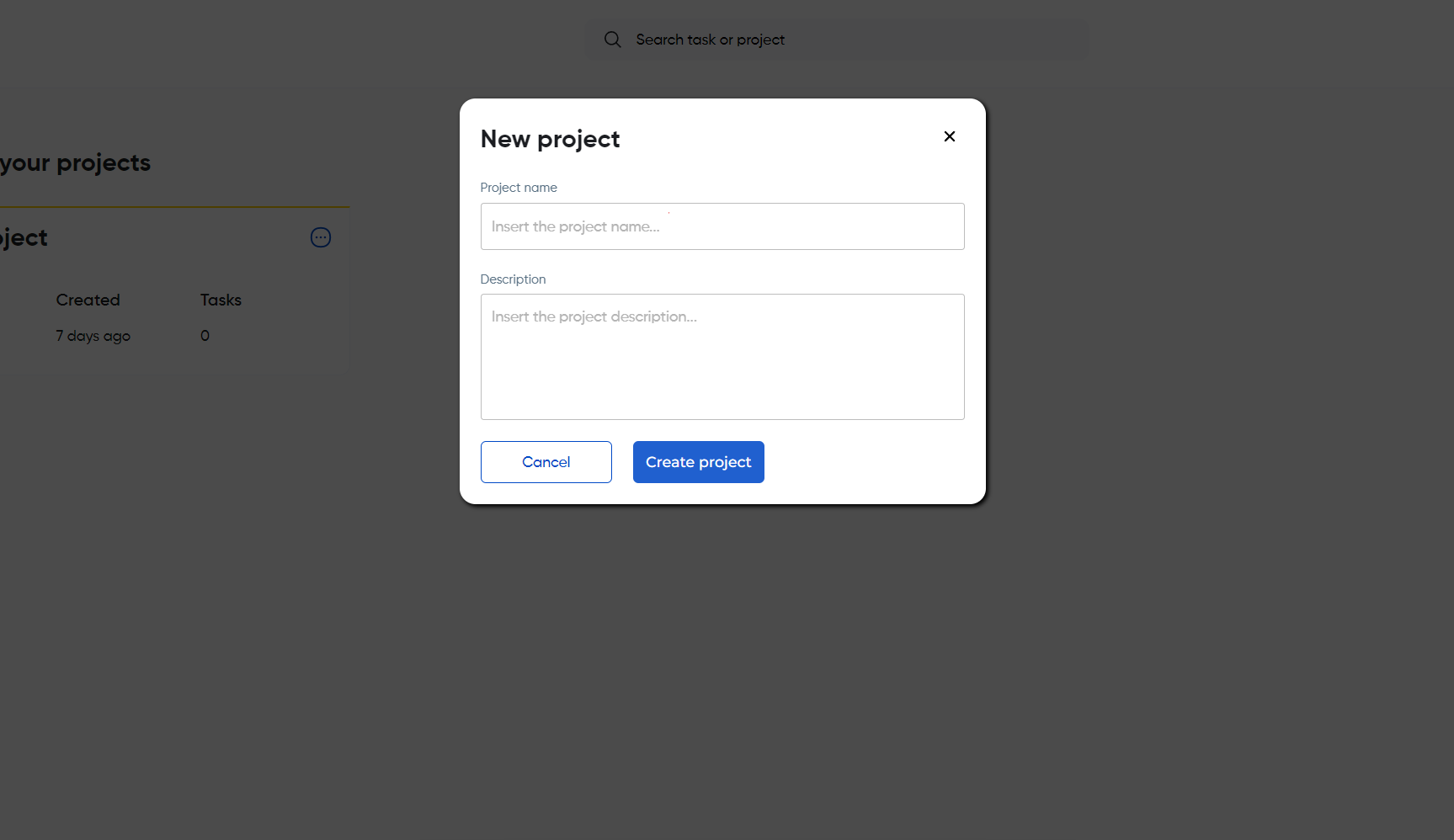
* The "Projects" tab is where you can create and manage your projects.
* The "Tasks" tab is where you can view tasks and filter only those assigned to you. There's also sorting by date, time, and alphabet, as well as additional filtering options.
* The "Team" tab, you can invite participants to your team and also edit team members.
* The "Settings" tab, there are options for "Personal Info" and "Security," where you can change your password and sign out of sessions on other devices.
***
## Reusable elements
1. **Add member to the project -** is used to add a member to the project and is located on the dashboard page.
2. **Footer -** includes links to the Privacy Policy and Terms and Conditions, as well as links to Information and Contacts. Used on pages: docs, index, 404, reset\_pw pages.
3. **Mobile footer** - used on the dashboard page, sets the overflow property of the element with the identifier #overflow-visible to visible, allowing the content of this element to be visible even if it exceeds its dimensions.
4. **More project -** this feature is used to configure or modify the color scheme of a project, or to delete it. Used on pages: workspace, dashboard.
5. **Filters** - used to sort tasks by due date, creation time, or alphabetically, and to filter and display only my tasks, due this week or next week. Used on pages: dashboard.
6. **Header** - the top part of a web page containing the logo, application name, navigation elements, and other important components. Used on pages: index, docs, workspace, 404, login, reset\_pw.
7. **More comment** - is an element used exclusively on the dashboard page, allowing users to edit or delete a comment.
8. **More Icon users** - a visible element used on the dashboard page to display information about the users in the project.
9. **Tasks Assignee** - is an element used on the dashboard page to indicate who is assigned to a task and provide information about the assigned user.
***
## Data Types
### Color
This data type is designed to assign a color to a [`Project`](#project).
| Field name | Type | Notes |
| ---------- | --------------------- | ------------- |
| `Color` | `Text` | Color name |
| `Project` | [`Project`](#project) | Project color |
### Comment
This data type is designed for storing comments from [`Tasks`](#task).
| Field name | Type | Notes |
| ---------- | --------------- | ------------ |
| `Content` | `Text` | Comment text |
| `Task` | [`Task`](#task) | Task comment |
### FAQ
This data type is designed for storing questions and answers.
| Field name | Type | Notes |
| ---------- | ------ | ------------- |
| `Answer` | `Text` | Answer text |
| `Question` | `Text` | Question text |
### History Project
This data type is designed for storing all changes who made in [`Project`](#project).
| Field name | Type | Notes |
| ---------- | -------------------------- | ----------------------------- |
| `Action` | `Text` | Project action |
| `Did` | `List of` [`Users`](#user) | The user who did the action |
| `Icon` | `Text` | The icon with the change made |
| `Project` | [`Project`](#project) | The project that was modified |
### Project
This data type is designed for storing information about Project.
| Field name | Type | Notes |
| ----------------- | ------------------------------------------------ | --------------------- |
| `Collaborators` | `List of` [`Users`](#user) | Project collaborators |
| `Description` | `Text` | Project description |
| `Image` | `Image` | Project image |
| `Project History` | `List of` [`History Projects`](#history-project) | History of project |
| `Sections` | `List of` [`Sections`](#section) | Project sections |
| `Status` | `Yes/No` | Project status |
| `Title` | `Text` | Project title |
| `Workspace` | [`Workspace`](#workspace) | Project workspace |
### Section
This data type is designed for storing section names with [`Tasks`](#task).
| Field name | Type | Notes |
| ---------- | -------------------------- | ----------------------------------------- |
| `Name` | `Text` | Section Name |
| `Project` | [`Project`](#project) | The project to which the section belongs. |
| Tasks | `List of` [`Tasks`](#task) | The tasks within the section. |
### Task
This data type is designed for storing information about Task.
| Field name | Type | Notes |
| ------------- | -------------------------------- | ----------------------------- |
| `Assignee` | [`User`](#user) | Assignee to task |
| Comments | `List of` [`Comments`](#comment) | Task comments |
| `Completed` | `Yes/No` | Is completed this task or not |
| `Description` | `Text` | Task description |
| `Due Date` | `Date` | Doe date for task |
| `Files` | `List of files` | Task files |
| Title | `Text` | Task title |
### User
This data type is designed for storing information about User.
| Field name | Type | Notes |
| ------------------- | ------------------------------------ | ---------------------- |
| `Bio` | `Text` | User bio |
| `Current workspace` | [`Workspace`](#workspace) | User current workspace |
| `Full Name` | `Text` | User name |
| `Image` | `Image` | User image |
| `Phone` | `Text` | User phone number |
| `Role` | `Text` | User role |
| `Workspaces` | `List of` [`Workspaces`](#workspace) | User workspaces |
| `Email` | `Text` | User email |
### Workspace
This data type is designed for storing all workspace names with their collaborators and [`Projects`](#project).
| Field name | Type | |
| --------------- | -------------------------------- | ----------------------- |
| `Collaborators` | `List of` [`Users`](#user) | Workspace collaborators |
| `Name` | `Text` | Workspace name |
| `Projects` | `List of` [`Projects`](#project) | Workspace projects |
***
## Option sets
#### Dashboard Menu
* Home
* Projects
* Tasks
* Team
* Settings
* Project preview
* Search
#### Sort MT
* All Tasks
* Incomplete tasks
* Completed tasks
* Due next week
* Due this week
* Just my tasks
* Creating time
* Alphabetical
* Due date
***
The template is available in its current form, however, further alterations can be negotiated.
Don't hesitate to reach out to us with any questions, and we'll gladly explore options to accommodate your concepts – Visit us at [https://appassion.io/](https://appassion.io/) or email us at
**We are always at your service through:** [Upwork](https://www.upwork.com/agencies/1472948949083369472/), [Clutch](https://clutch.co/profile/appassion#highlights). \